How to Create a Virtual Business Card for Email, Zoom and LinkedIn
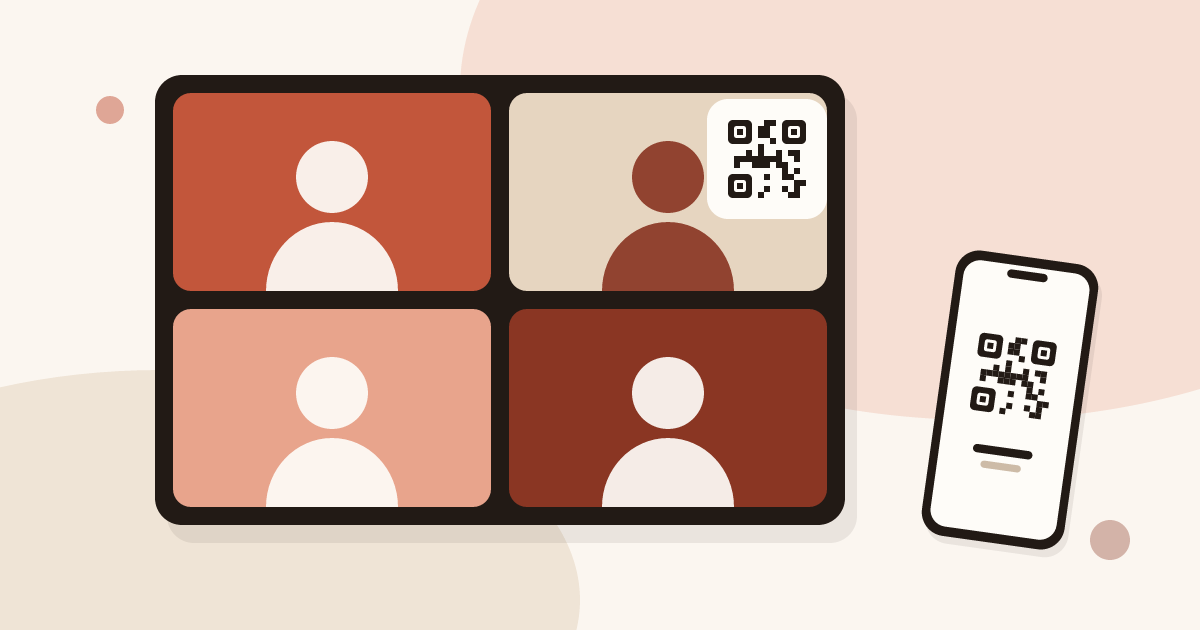
A virtual business card is a digital card you share online instead of handing it over. You create it once, publish it, then use its link and QR code on video calls, LinkedIn and email. The person who receives it installs nothing and saves your contact in one tap.
If you are new to the format, the guide to how digital business cards work explains the building blocks: link, QR code, NFC and vCard. This article stays on one situation: you sell or network remotely and never meet people in the same room.
How to create a virtual business card
You need about ten minutes and an email address. The Free plan gives you one live card, with no time limit and no credit card. The detailed walkthrough is in how to create a digital business card. Here are the short steps:
- Sign up with your email address.
- In "My cards", click "New Card".
- Fill in your profile: photo, name, job title, company.
- Add your contact details and your social links.
- Pick a style.
- Save, then click "Publish".
Until you publish, the card is a draft. Drafts are unlimited on every plan, so you can try a layout without using your live card. Only a published card counts toward your plan and only a published card can be opened by someone else.
Once the card is live, open the share options. The "Share" button in "My cards" gives you the link and the QR code. For remote work you will use the link and the QR code. The rest of this article shows where each one goes.
How to make a virtual business card that works on a screen
The previous section builds the card. This one decides its content, because a card read on a laptop or a phone between two meetings is not a printed card.
- A photo of your face. On a call, people already see you. In a LinkedIn message or an email, the photo is the thing that tells them who is writing.
- One job title, in plain words. Use the title your contact would search for, not an internal grade.
- Two ways to reach you at most. An email address and a phone number are enough. Every extra line makes the card slower to read.
- One link that matters. A booking page, a product page or your company site. Choose the one you want people to open after the call.
- Social links you actually use. LinkedIn for most sales roles. Leave out the accounts you never update.
Keep the style simple. A remote contact opens your card on a phone, often in a hurry. Large text and a clear photo read better than a busy layout.
If you want visitors to leave their details, Pro lets you add a form to the card, with your own questions. This is useful after a webinar or a demo: the contact saves your card and answers your questions. The form is a Pro and Team feature. The Free card does not include it.
Put your card on a Zoom or Teams background
A QR code on your virtual background lets anyone on the call scan it with their phone and open your card. It costs nothing and it works when you are speaking and cannot paste a link.
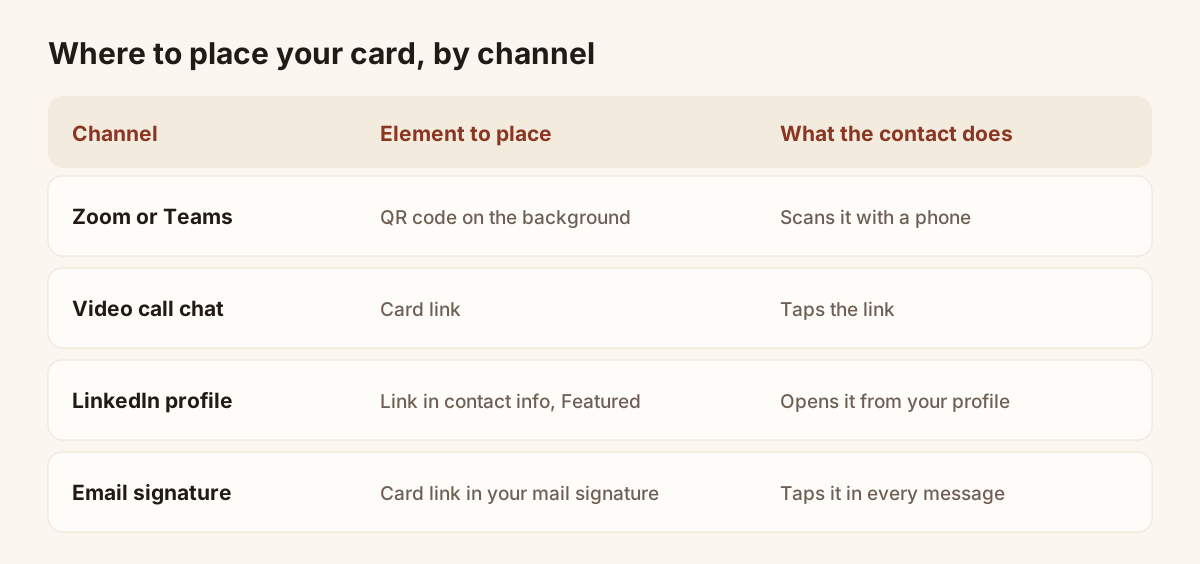
Where each element of your card goes.
The steps are generic good practice, not a Piktechs feature:
- Open the share options of your published card and download its QR code as an image.
- Place the QR code on a plain image the size of your video background, for example 1920 by 1080 pixels. Use a light, empty panel in one corner, and keep the code large.
- Add your name and a short line of text next to the code, for example "Scan to save my card".
- In your video tool, choose the image as your virtual background. In Zoom this is in the video settings, under backgrounds. In Teams it is in the background effects offered before you join and during the call.
- Test it before the real call. Ask a colleague to scan the code from their screen and tell you how it looks on their side. Your own preview may be mirrored, and that is normal.
Three habits make the code readable:
- Size. A small code turns into a blur after video compression. Make it a large part of the frame.
- Contrast. Dark code on a white panel. Never put it over a photo.
- Position. Place it beside you, not behind your head, and keep your shoulders out of the way.
A background has a limit: people on a phone or a small window may not see it, and some people join with their own background switched off. Never rely on the code alone. Paste the link in the chat as well.
Share your card link during a call
The link is the fallback and often the fastest way. When a contact asks "can you send me your details?", paste the link in the chat of the video tool. They tap it, your card opens in their browser, and they save your contact in one tap.
Your card also has its own address that you can say aloud if the chat is not available. If you have a Pro plan, you can choose a custom address for your card, which is easier to read out. A Team plan adds your own domain.
After the call, send the same link in the follow-up email. If you meet the same person again later, nothing has to be sent twice: the link always opens the current version of your card. The article on how to update a digital business card explains why.
Add your card to LinkedIn
LinkedIn is where most remote contacts will look for you next. Two places can carry the link, and they are worth setting up once:
- The contact information of your profile. Add the link as a website, with a clear label such as "My card". Your contact can open it from your profile without sending you a request.
- The Featured section. Add the link as a featured item, with a short title. It sits near the top of your profile and it is the first thing a visitor can click.
In a connection request or a message, paste the link after one sentence of context, for example "Here is my card with my number and my calendar". A message without context looks like spam. A message with one useful sentence does not.
The names of the LinkedIn menus change from time to time. If you do not find a section, search the help of LinkedIn for "contact info" and "featured".
Add your card to your email signature
Every email you send is a small meeting. A signature that carries your card link turns each message into a way to save your contact.
The steps are:
- In "My cards", click "Share" and copy the link of your card.
- Open the signature settings of your mail client.
- Paste the link, and add the downloaded QR code image if you wish.
Your email client has its own signature settings, and each one is different. The full walkthrough for Outlook and Gmail is in how to make an electronic business card for your email signature.
Keep the signature short. A name, a title, a phone number and the card link are enough. A signature with a banner, three logos and five links hides the one that counts.
Check that everything works before you use it
Spend five minutes on a test, because a QR code that does not scan is worse than no QR code.
- Open the link on your own phone, in a private browser window, to see the page as a stranger sees it.
- Scan the QR code from your screen with a phone that is not yours.
- Save your own contact from the card and check the phone number and the email.
- Look at the card on a small screen. Is the first thing visible your name and your photo?
- Send yourself an email with the new signature and tap the link.
If you change your job title or your phone number later, you do not need to reshare anything. The link, the QR code and the signature all point to the same card. Edit it, save, and every channel shows the new details.
Follow up after the call
A virtual business card gets you a contact, not an answer. Three habits help:
- Send the follow-up within a day, while the call is fresh.
- Mention one topic you discussed.
- Put the card link at the end, so the contact can save you.
On a Pro plan, card analytics show card views, contact saves and new leads. This tells you whether the people you sent the card to opened it. It shows nothing finer than that, and Piktechs does not claim more. The analytics screen is a Pro feature.
The same card works for a recruiter, a consultant or a freelancer, in the same places. The product page for digital business cards lists the content of a card.
Frequently asked questions
Is a virtual business card free?
You can create and publish one card on the Free plan, without time limit and without a credit card. Forms, Contacts and analytics need a Pro plan, and Pro starts with a 14-day trial. Check the current prices on the pricing page.
Can I put a virtual business card on a Zoom background?
Yes. Put the QR code of your published card on an image, then choose that image as your virtual background in your video tool. Make the code large and dark on a light panel, and paste the link in the chat as well, because not everyone will see the background.
How do I share a virtual business card on LinkedIn?
Add the link of your card to the contact information of your profile and to the Featured section. In a message, paste the link after one sentence of context. The article on how to share a digital business card lists the other ways to share it.
Does the other person need an app to open my card?
No. The card opens in the browser of any phone or computer, from the link or the QR code. The person can save your contact in one tap.
What is the difference between a virtual and a digital business card?
Both words describe the same thing for most people: a card that lives online and is shared by link or QR code. "Virtual" insists on remote use, such as calls and email. Want the full definition of the term, in our definition of a digital business card?
Read next
 Guide
How Do Digital Business Cards Work? QR Codes, NFC, Links and vCards Explained
QR code, NFC, link or vCard: see how digital business cards work, how contacts get saved on iPhone and Android, and how leads follow.
 Article
How to Create a Digital Business Card (Step by Step, Free)
Create a free digital business card in 5 steps: pick a layout, add your links, share it by QR code or NFC. No app needed for the people you meet.
 Article
What Is a vCard? How to Create One (and Why a Digital Card Beats a .vcf File)
A vCard (.vcf) is a contact file. Learn how to create one by hand or with a generator, turn it into a QR code, and see where it falls short.
 Article
How to Create a Contact Card on iPhone and Android (and Share It)
Set up your contact card on iPhone or Android, share it with NameDrop or a QR code, and know when a digital card works better.
 Article
Digital Business Cards for Teams: Brand, Manage and Track Every Card
Roll out digital business cards to your whole team: one locked brand kit, roles, lead assignment and stats per card, from EUR 15 per seat.
 Article
Best Digital Business Card Apps, Compared Honestly
We compare the best digital business card apps on price, CRM sync, team features and GDPR, so you can pick the right one.
Create your digital card
The Free plan includes one live card. No app needed for the people who receive it.