How to Collect Contact Info with a QR Code (and Stay GDPR Compliant)
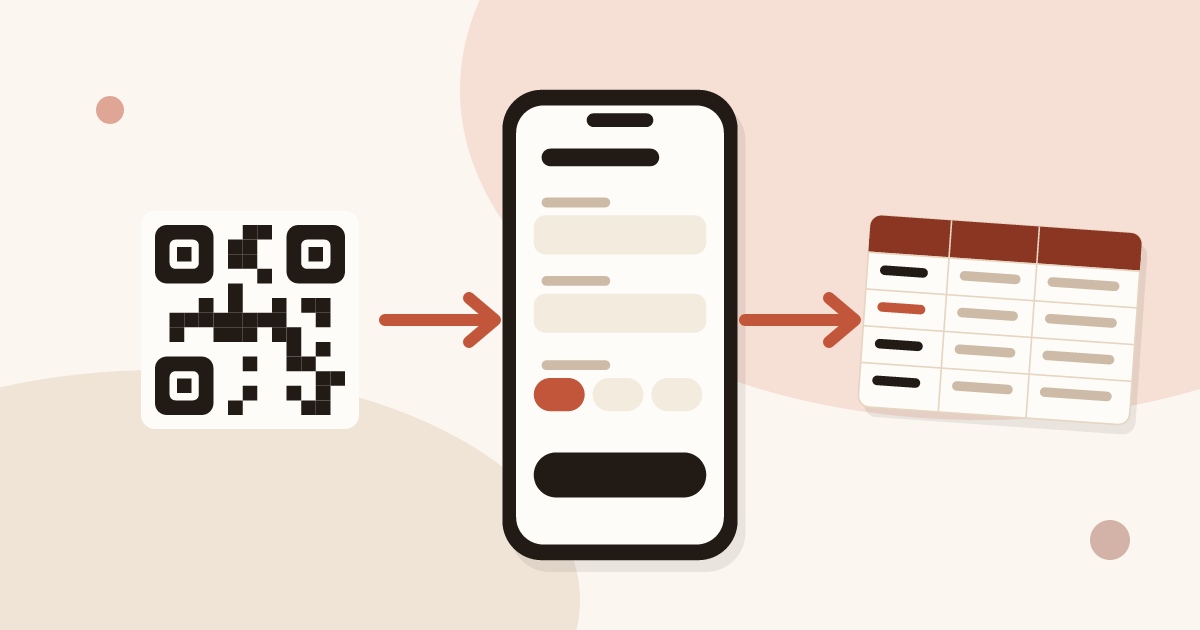
A QR code collects contact information when it opens a form. On a Piktechs card, the QR code opens the card, and the card carries a form where the visitor types their details and agrees to be contacted. The lead lands in Contacts with its consent. The form is a Pro and Team feature.
For the full picture, read the complete guide: business cards with a QR code.
How to collect contact information with a QR code
A QR code only carries a short text, usually a web address. It collects nothing by itself. The collection happens on the page it opens, so you need a page with a form and a code that leads to it.
The path has five steps, from the scan to your follow-up:
- The visitor scans the code with the phone camera and installs nothing.
- The page opens in their browser.
- They read your card and fill in the form.
- They agree to be contacted. The consent is recorded with their answers.
- The lead appears in your Contacts, ready for follow-up or for your CRM.
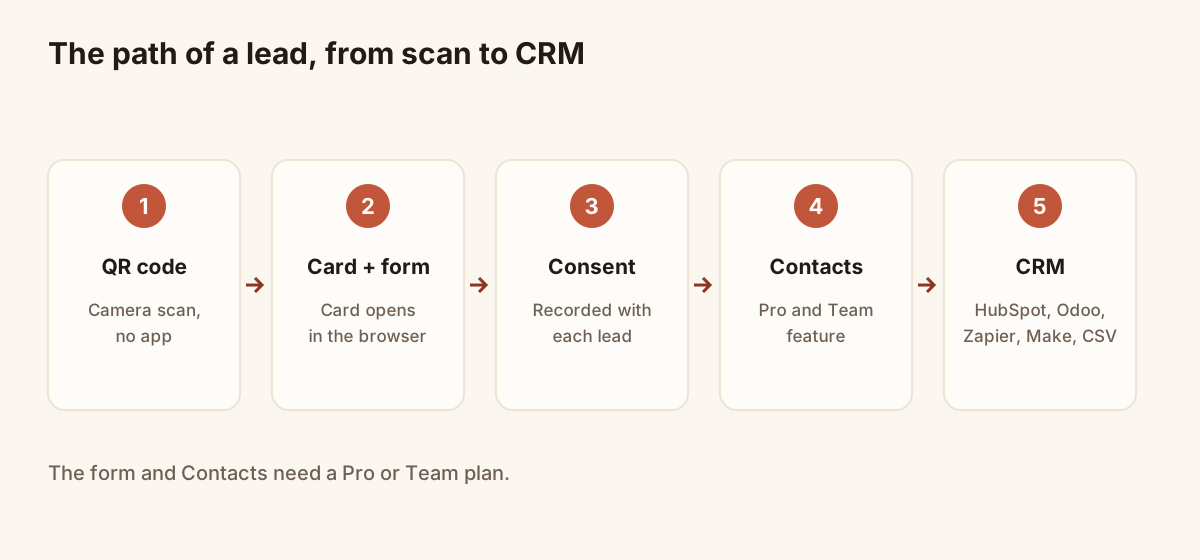
From the scan to the CRM.
Piktechs does this with the card you already have. Each card has its own QR code and the form attaches to the card. There is no separate landing page to build and no second code to print. If you are not sure how a code behaves once printed, read the comparison of static and dynamic QR codes.
Can a QR code collect contact info?
Yes, but only through the page it opens. Three situations are worth telling apart.
| Code type | Collects contact info? | Detail |
|---|---|---|
| vCard code | No | The phone saves your details. Nothing comes back to you |
| Link to a plain web page | No | The visitor reads, nothing is recorded |
| Link to a card with a form | Yes | The visitor leaves details, you receive a lead |
A vCard code is one-way: you give your contact, you receive nothing. A card with a form makes the exchange two-way. The visitor can save your contact in one tap and also leave theirs.
On the Free plan, the card opens and the visitor saves your contact, but there is no form. The form, Contacts and analytics start with Pro. Pro has a 14-day trial, so you can set a form up and test it on a real scan before paying.
How to get someone’s details back from a digital business card
Create the form first, then attach it to the card. In Piktechs:
- In “Forms”, click “New form” and name it.
- Add fields: text, email, phone, choices.
- Link fields to contact details (name, email, company). The other fields become qualification questions.
- Split a long form with “Add a step”.
- Check the “Preview” tab, then save.
- In the “Card management” tab, choose the form for each card, or pick it in the card editor, “Settings” tab.
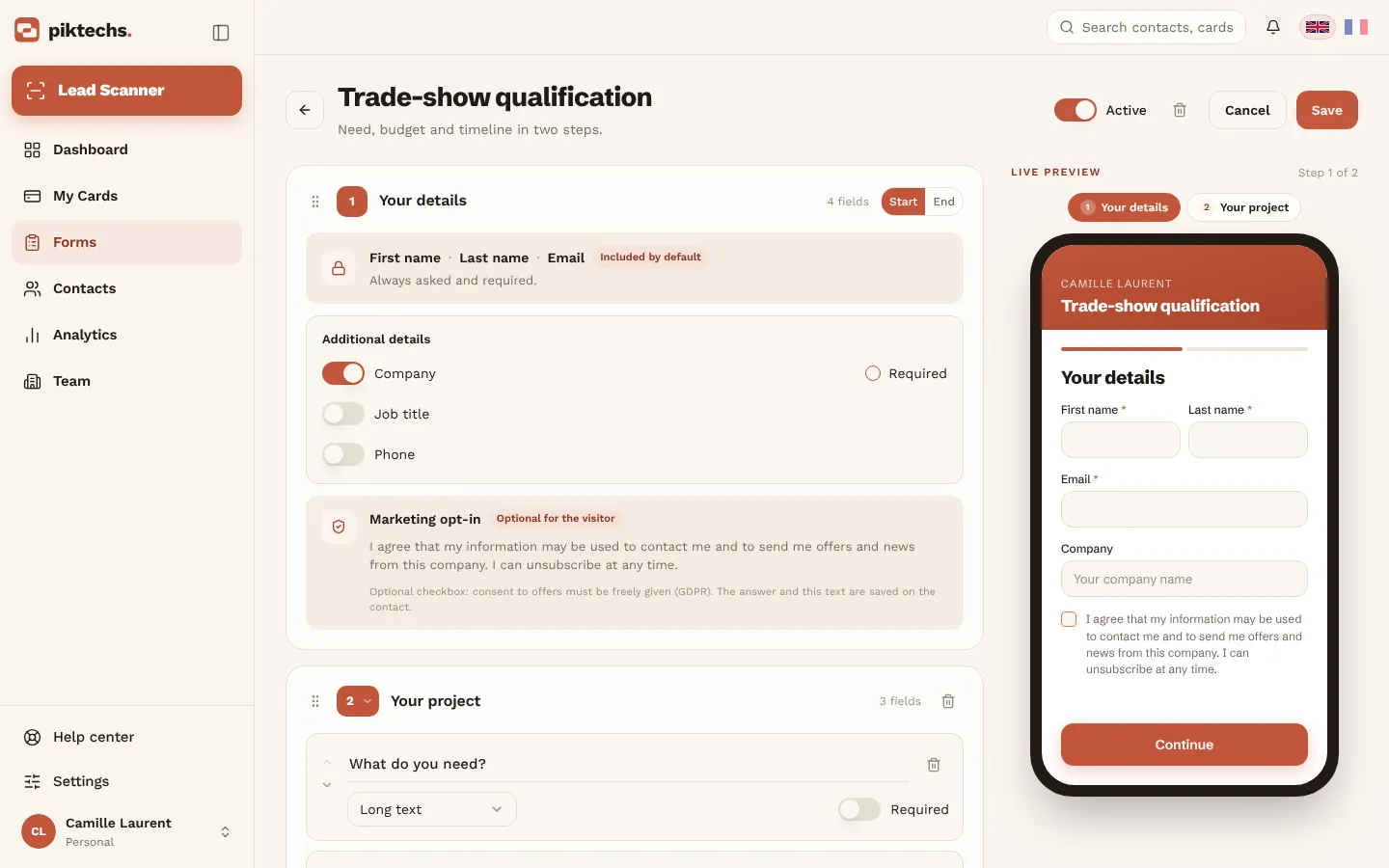
Piktechs screen, sample data.
Keep the form short. Name and email are enough to start a conversation. Each extra field costs you some answers, so add a question only if it changes your follow-up: a need, a timeline, a budget range. The guide on lead qualification explains which questions help.
Two details help in practice. A form left without signal is queued on the visitor’s phone and sent when the network returns, which matters in a hall with poor coverage. A form created in a team workspace belongs to the team: every member can use it and admins can edit it.
For the other ways to give the card to someone, read how to share a digital business card.
Give people a reason to leave their details
A form with no reason is skipped. The visitor has your card in their hand and gains nothing by typing. Offer a concrete return: a quote, a callback, a brochure, a demo slot. Say it in the title of the form, in one short line.
Place the invitation next to the printed code too. “Scan to save my contact” gets the code scanned. “Scan to book a 15-minute call” gets the form filled. Test both lines on a few people before a print run.
The form itself should take under a minute on a phone. Use choices instead of free text where you can, because thumbs are slow. Put the question that matters most first, since people drop out along the way.
Is collecting leads with a QR code GDPR compliant?
A QR code is neither compliant nor non-compliant. The collection behind it is the point. This section gives general principles. It is not legal advice, and a lawyer or your data protection officer should confirm how they apply to your case.
Lawful basis. You need a reason to hold someone’s data. Consent is one basis, and a visitor who ticks a box on your form gives it in a clear, recorded act. Other bases may apply depending on your situation, so check which one covers you.
Transparency. The visitor should know who collects the data and for which purpose before they send it. Say it in a sentence near the form: your company, the reason, how to reach you. Link your privacy policy.
Minimisation. Ask for the data you need, no more. A phone number you will never use is a liability.
Purpose. Use the data for the purpose you stated. A visitor who asked for a quote did not ask for a newsletter.
Retention. Keep the data only as long as it is useful. Decide a duration and delete contacts that no longer matter.
Rights. People can ask to see, correct or delete their data. You need a way to answer, starting with an email address.
Security. Limit who can see the leads and keep them in tools you trust.
Piktechs helps on two points. The consent is recorded with each lead, so you can show later that a person agreed. And the data is hosted in the European Union. These are tools, not a guarantee: the lawful use of the data remains your responsibility. The page on are digital business cards safe covers security in more depth.
Three habits keep the collection clean:
- Never pre-tick a consent box.
- Never add someone to a list they did not agree to join.
- Delete on request, and note that you did.
How to send QR code leads to HubSpot
Leads from the form reach Contacts first. From there, an owner or admin connects HubSpot, Odoo, Zapier or Make in Team → Integrations, and new leads are then sent automatically. “Sync now” sends the existing contacts to HubSpot or Odoo.
For HubSpot:
- In HubSpot, create a private app with the contacts scope (Settings → Integrations → Private Apps).
- Copy its access token.
- In Piktechs, open Team → Integrations and paste the token.
HubSpot and Odoo receive the name, email, phone, company and job title, plus the message if it is mapped in “Field mapping”. Zapier and Make receive the full lead, with its source, tags, notes and form answers. Salesforce has no native connector: use Zapier or Make. Without a CRM, work from Contacts and export the list as CSV. Piktechs feeds your CRM and does not replace it.
A usable rule: decide where a lead goes before the event, not after. A lead that sits in a list for a week has already lost its warmth. The mobile CRM page shows the follow-up side, and the trade show lead capture page covers the event case. If you run a stand, read digital business cards at trade shows too.
Checklist before you go live
- The form is attached to the card that carries the QR code.
- The card is published, so the code leads to a live page.
- You scanned the printed code with two phones and submitted a test lead.
- The test lead appears in Contacts with its consent.
- A sentence near the form names you, the purpose and how to reach you.
- Your privacy policy is linked.
- You know where leads go next: CRM, CSV or a person.
Is collecting leads with a QR code GDPR compliant?
It depends on how you collect and use the data. Piktechs records consent with each lead and hosts data in the EU, but compliance remains your responsibility. Have a professional confirm your case.
Can I send the leads to my CRM?
Yes. HubSpot and Odoo connect natively, Zapier and Make work through webhooks, and a CSV export is always available.
Frequently asked questions
Can a QR code collect contact information?
Only through the page it opens. A vCard code collects nothing. A code that opens a card with a form collects the visitor’s details.
Do visitors need an app to leave their details?
No. The card opens in the browser of any recent phone and the visitor installs nothing.
Is the form available on the Free plan?
No. Forms, Contacts and analytics are Pro and Team features. Free keeps one live card that visitors can open and save.
Give people a reason to leave their details
A form with no reason is skipped. The visitor has your card in their hand and gains nothing by typing. Offer a concrete return: a quote, a callback, a brochure, a demo slot. Say it in the title of the form, in one short line.
Place the invitation next to the printed code too. “Scan to save my contact” gets the code scanned. “Scan to book a 15-minute call” gets the form filled. Test both lines on a few people before a print run.
The form itself should take under a minute on a phone. Use choices instead of free text where you can, because thumbs are slow. Put the question that matters most first, since people drop out along the way.
Read next
 Guide
QR Code Business Cards: Definition and How to Make One
A QR code business card opens your details on any phone. Learn how to make one in minutes and pick the link: a vCard, a website or a live digital card.
 Article
Tap business cards: no special card needed
Make tap business cards with a plain NFC tag or sticker: write your digital card’s link on it and share your details with one tap.
 Article
Free QR Code Business Card Generator: Static vs Dynamic QR Codes
Generate a QR code for your business card for free, and learn why a dynamic QR code you can edit and track beats a static vCard code.
Scan your first card today
Pro includes Lead Scanner, forms and Contacts. 14-day trial.