Tap business cards: no special card needed

Tap business cards use an NFC chip that holds the address of your digital card. You do not need a special card: a cheap NFC tag or sticker, written with a free app, is enough. The visitor holds their phone near it and your card opens in their browser.
For the full picture, read the complete guide: NFC business cards.
How NFC sharing works
NFC is a very short-range communication technology, working over a few centimetres. A passive NFC tag has no battery: it wakes up when a phone comes close and passes on its content.
For a business card, that content is a web address, the same as your digital card’s. The phone reads it and opens the page in the browser. The person sees your photo, your links and a button to save your contact. They install nothing.
The key point: the tag does not hold your contact details, only a link. If your number changes, the page updates and the tag stays the same. That is why a tag written once stays useful for years.
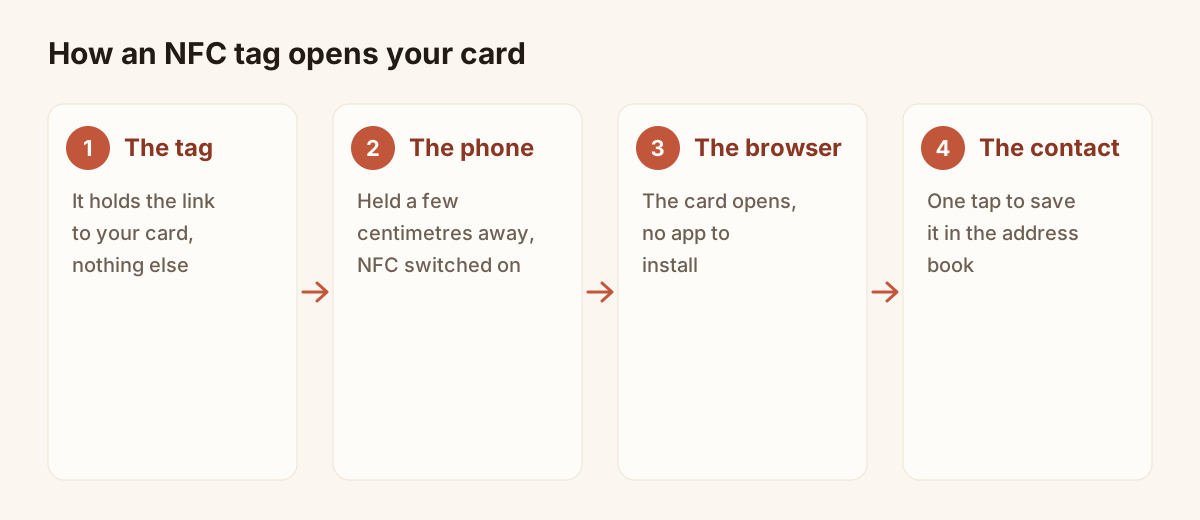
Role of the NFC tag and role of the phone.
Compatible phones
You do not control your visitor’s phone, so plan for the cases where the tag does nothing.
Recent phones read NFC tags. Two settings to know about:
- iPhone. Recent models read a tag without an app: hold the back of the phone near the tag with the screen on.
- Android. NFC must be switched on in the settings. It is on by default on many models, not all.
Older phones, and some entry-level models, have no NFC. That is why a tag never replaces a QR code: keep both on your materials. Test with a few different phones before you rely on the tag at a trade show, and keep your link or QR code ready as a fallback.
Hardware to buy for an NFC business card
No special card. You need an NFC tag or sticker, of the NTAG type, sold by many retailers. It is writable and can hold a web address.
Piktechs does not sell a physical NFC card. So you choose the shape of your own support:
- A sticker to put on the back of your phone, on a badge holder or on a display stand.
- A PVC card or a small plate with a chip inside, which you have engraved or printed as you wish.
- A key ring or a badge, so you always have it on you.
A common-sense rule: some surfaces, metal in particular, interfere with reading. Test the tag on the final support before you order several.
Write your card’s link on the tag
Writing takes a few moments. It needs your card to be published first (see how to create a digital business card).
- In Piktechs, open “My Cards” and copy your card’s link with “Share”, then “Copy Link”.
- Install a free NFC tag writing app on your phone.
- In that app, choose to write a web address (a URL) and paste the link.
- Hold the tag near the phone to write the link onto it.
- Test: hold the tag near another phone and check that your card opens.
Write the shortest link you can, without needless parameters. It fits better on small tags and reads faster.
Link a Piktechs tag to a card
If you have a Piktechs NFC tag, the app lets you link it to one of your cards. Tap the tag with your phone. If it is not linked yet, Piktechs asks you to sign in, then to pick the card it should open. From then on, every tap redirects to that card.
With a third-party tag, use the method in the previous section: you write your card’s link onto the tag yourself.
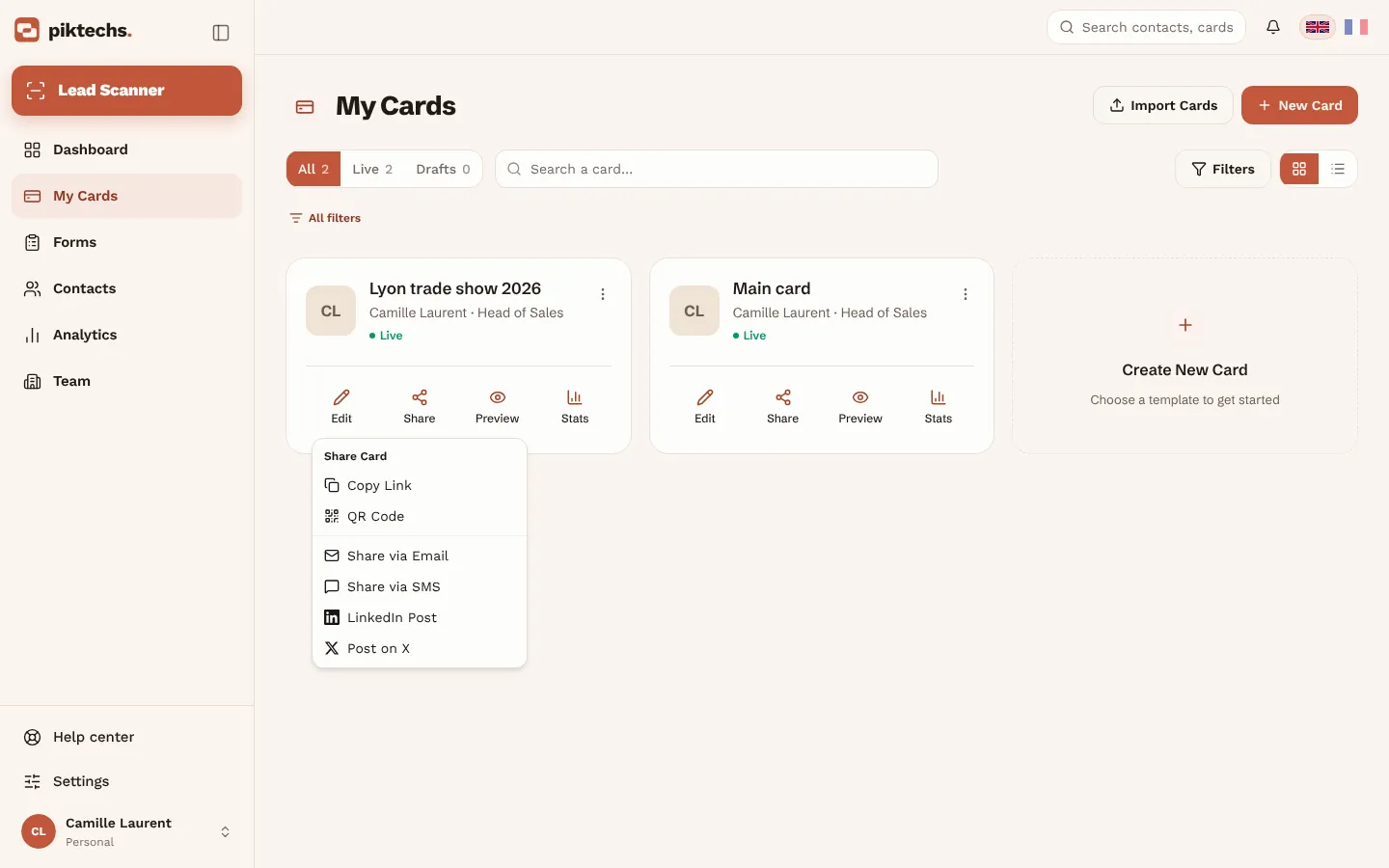
Piktechs screen, sample data.
Where to put the tag and how to present it
A tag nobody notices is useless: people need to know they can touch it. A few simple habits:
- Mark the spot. Print a small symbol or a few words next to the tag, such as “Hold your phone here”.
- Keep a QR code beside it. On the same support, the code serves phones with no NFC and those with NFC switched off.
- Pick a stable spot. At a stand, stick the tag on a display or on the table, not on an object that moves around.
- Announce the gesture. “Hold your phone here, my card opens and you can save my contact” is enough.
- Check the link now and then. If you rename or delete your card, the tag leads to a page that no longer exists.
NFC or QR code: which to use when
Both lead to the same card. The choice depends on the situation.
| NFC tag | QR code | |
|---|---|---|
| Visitor action | Hold the phone near | Scan with the camera |
| Hardware | Tag or sticker to write | None, or a print |
| Phones concerned | Those with NFC (a setting to switch on for Android) | Any phone with a recent camera |
| Display on a screen | Not possible | Yes, on your phone |
| Update after creation | The page changes, the tag stays | The page changes, the code stays |
| Cost | A few tags to buy | Free |
Use the tag when you have a support to leave on a table or keep in your hand, and the gesture needs to be instant. Use the QR code when you want to print, show on a screen, or reach everyone whatever their phone. For most situations, the best answer is to have both. To print the code properly, read how to create a QR code for a business card.
For the digital card itself, see the page about digital business cards. To choose a solution, how to choose the best digital business card lists the criteria.
Frequently asked questions
Do I need to buy a special NFC card?
No. An NFC tag or sticker of the NTAG type is enough. You write your digital card’s link on it with a free NFC writing app. Piktechs does not sell a physical NFC card.
Does my contact need to install an app?
No. Recent iPhones read an NFC tag without an app, and on Android NFC just needs to be switched on. The card opens in the browser.
What happens if I change my number?
Nothing to rewrite. The tag holds your card’s link, not your details. You edit the card in Piktechs and the page is up to date at the next tap.
Does an NFC tag replace a QR code?
No, they work together. Some phones have no NFC, or have it switched off. A QR code works with the camera of almost every recent phone.
Can I reuse a tag for another link?
Generally yes. A tag written with a link can be rewritten with an NFC writing app, as long as it has not been locked.
Read next
 Guide
NFC Business Cards: Definition and How Tap-to-Share Works
How NFC business cards work, which phones can read them, how they compare with QR codes, and whether you need a physical card at all.
 Article
Free QR Code Business Card Generator: Static vs Dynamic QR Codes
Generate a QR code for your business card for free, and learn why a dynamic QR code you can edit and track beats a static vCard code.
 Article
How to Put a QR Code on a Business Card (Size, Placement, Link Target)
Add a QR code to your business card the right way: minimum size, placement, the link target, and why a dynamic QR code matters.
Create your digital card
The Free plan includes one live card. No app needed for the people who receive it.