Business card scanner to Excel: from scan to spreadsheet

To get business cards into Excel, scan them with Lead Scanner, export your contacts as a CSV from Contacts, then open the file from Excel's Data tab. There is no direct connector: the CSV file is the path. The step that matters is the opening, so that accents survive.
For the full picture, read the complete guide: scanning business cards.
Why go through Excel
A spreadsheet is still the simplest tool for three jobs: sorting a list of cards you have received, sharing it with someone who has no access to your tools, or preparing a hand-off to software that accepts a file. Thirty contacts from a trade show fit on one sheet, with Excel's filters.
It also suits you if you have no CRM. Piktechs does not replace a CRM, but Contacts and the CSV export are enough to work without one. If you use HubSpot or Odoo, sync instead: contacts arrive there with no file in between. The business card scanner page covers both routes.
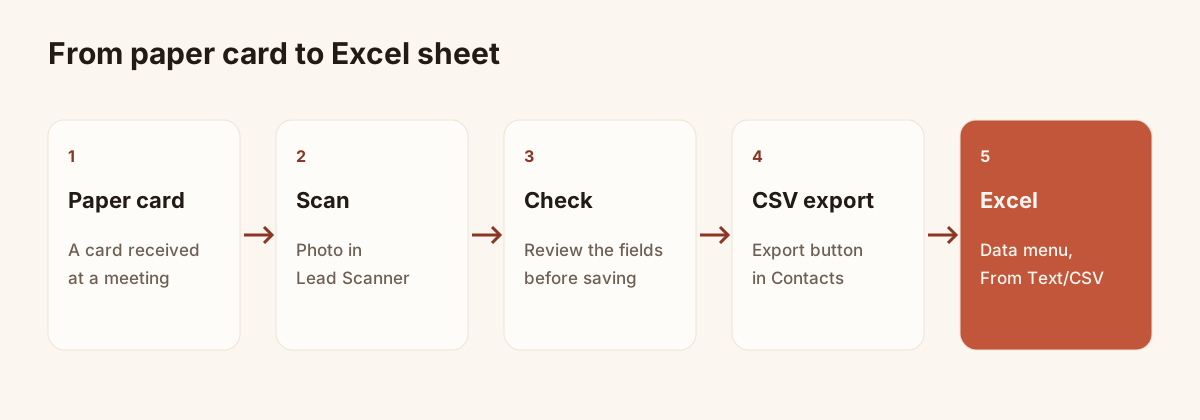
The path: card, scan, check, CSV export, Excel.
Scan the cards
Lead Scanner is included in Pro (EUR 9 a month, EUR 84 a year) and in Team, with a 14-day trial. On a phone, it is the round button in the bottom bar.
- Open "Lead Scanner".
- Take a photo of the card, or import an image.
- Check the fields that were read, and add a note or a priority.
- Save. The lead is added to Contacts.
Do check before you save. A typo in an email becomes a typo in your spreadsheet, then in your mailing. Framing tips are in the article on how to scan a business card with your phone. Contacts entered by hand and answers to your card forms land in the same list, with their source.
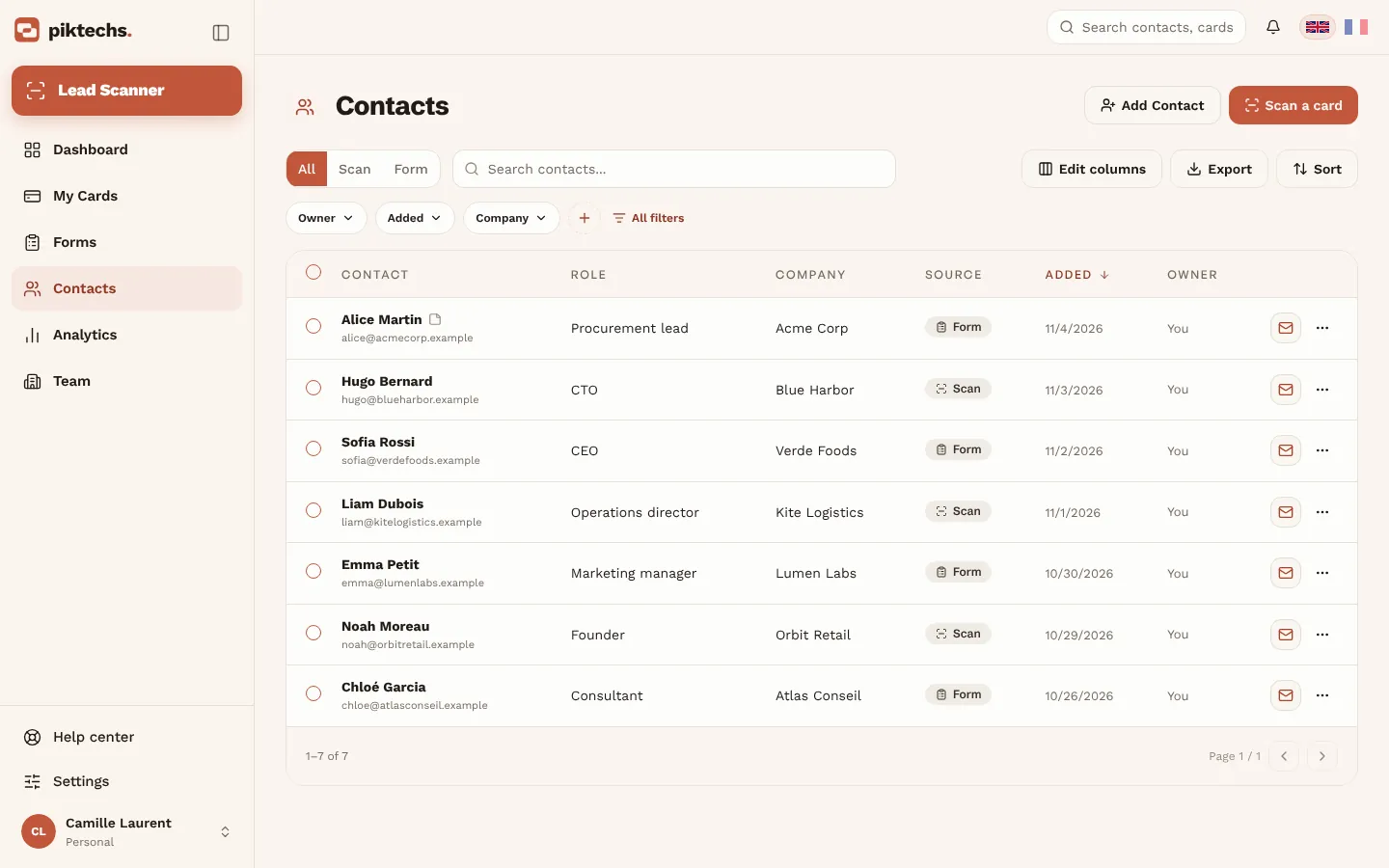
Piktechs screen, sample data.
Export to CSV
In Contacts, click "Export". A window asks which data to write to the file:
- the contacts you ticked, if you selected some;
- all contacts in the view, meaning the list as displayed with your filters and search;
- a limit on rows: 100, 500, 1,000 or all.
For one trade show, filter the list by date, member or tag first, then export that view. The file downloads under a name like piktechs-contacts-export-2026-11-15-143000.csv, with the date and time of the export.
The format is a plain CSV: values separated by commas, every field in quotes, text in UTF-8 with a BOM mark at the start, and rows ending with a carriage return. A field that would start with =, +, - or @ is prefixed with an apostrophe, so Excel does not treat it as a formula.
Open the CSV in Excel without breaking accents
This is where many files get damaged. If you double-click the CSV, Excel may expect a different separator, depending on your regional settings, and put a whole row in one cell. Accented names can also display badly. The safest route is to import the file:
- Open a blank workbook in Excel.
- Click the Data tab, then From Text/CSV. In some versions the button sits under "Get Data", then "From File".
- Choose the exported file. A preview window opens.
- Under File Origin, choose 65001: Unicode (UTF-8). The file already carries the BOM mark, so Excel often detects it alone. Check anyway.
- Under Delimiter, choose Comma.
- Look at the preview: names with accents and the "Form answers" heading should show with no stray characters, each column in its own cell.
- Click Load.
Microsoft sometimes moves these buttons between versions. If you cannot find the menu, search for "text" or "CSV" in Excel's search bar.
Recommended columns
The export has 17 columns, in this order. Not all of them help in a follow-up sheet. Keep the ones you use and hide the rest, without deleting them from the original file.
| Export column | Content | Keep for follow-up? |
|---|---|---|
| Name | Contact name | Yes |
| Email address | Yes, it is the duplicate key | |
| Role | Job title | Yes |
| Company | Company | Yes |
| City, Country | Place, country as an ISO code | Depends |
| Message | Message left by the contact | Yes |
| Source | Where the lead came from (scanned card, form, manual entry) | Yes |
| Card | Digital card used, empty if none | Depends |
| Owner | Member following the contact | For a team |
| Date | Date added | Yes |
| Created by, Modified by, Modified on | Audit trail | Rarely |
| Assigned to | Assigned members | For a team |
| Form answers | The visitor's answers, separated by a vertical bar | Yes |
| Marketing opt-in | Accepted, Not accepted or empty | Yes, before any mailing |
The export has no phone column at the time of writing. If you need one in your sheet, add it by hand. Priority, tags and notes are not among the export columns. Add your own follow-up columns: "Contacted on", "Next action", "Status". They live in your file, not in Piktechs.
Mind the marketing opt-in. It records the consent the visitor gave. Sort on it before you send a campaign to the list.
A last check before you share the sheet: scroll through the Source column. It tells you which rows came from scanned cards, which from forms and which from manual entry. Rows from a form usually carry the visitor's own answers, so they are often the most complete ones. Scanned cards carry the printed details, so check company and job title against your memory of the meeting.
Remove duplicates
Sometimes you scan the same card twice, or receive the card of someone already on the list. In Excel, the Email column is your anchor.
- Copy the sheet first, to keep the original.
- Select the Email column.
- On the Data tab, click Remove Duplicates.
- Tick the Email column only, then confirm.
Excel keeps the first row for each address. Sort by date first if you want to keep the most recent or the fullest one. Contacts with no email cannot be cleaned this way: compare them by hand, by name and company. If the file is going on to an address book, the article on scanning business cards to Outlook picks up from here.
Frequently asked questions
Can I import an Excel file into Piktechs?
No. The export to Excel runs one way. Piktechs does not take in a contact file: leads enter through scanning, the digital card, a form or manual entry.
Why are my accents broken in Excel?
Because Excel read the file with the wrong origin. Do not double-click it: go through Data, From Text/CSV, and choose UTF-8 as the file origin.
Excel put everything in one column. What now?
The separator was not recognised. Reopen the file through the import and choose Comma as the delimiter. The Piktechs CSV separates values with commas.
Is there a direct connector to Excel?
No. The CSV file is the path. To send contacts automatically to a tool, Piktechs syncs natively with HubSpot and Odoo, and with other tools through Zapier or Make.
Read next
 Guide
How to Scan Business Cards Into Your Phone and CRM
Scan paper business cards with your phone camera, check the details, and send each contact to your CRM with notes and a follow-up reminder.
 Article
Scan business cards to Outlook: import them as contacts
Scan business cards, export them as CSV and import them into Outlook on the web or on desktop, with the field mapping that makes the import work.
 Article
Card scanner for phone: 3 ways to scan a business card
Phone camera, dedicated app or CRM-connected app: compare three ways to scan a business card with your phone, then follow the steps to do it.
Scan your first card today
Pro includes Lead Scanner, forms and Contacts. 14-day trial.